Search FAQ / I can't find or load my Virtual Instrument's sound content library, what can I do?
I can't find or load my Virtual Instrument's sound content library, what can I do?
Select your related product using the list below for your specific steps.
- SampleTank 4 & Associated libraries (SampleTank 3, Miroslav Philharmonik 2, Syntronik, or any Custom Shop libraries)
- SampleTank 3 & Associated libraries (Miroslav Philharmonik 2, Syntronik, or any Custom Shop libraries)
- SampleTank 2 & Associated libraries (Miroslav Philharmonik 1, SampleMoog, SampleTron, or Sonik Synth 2)
SampleTank 4 & Associated libraries (SampleTank 3, Miroslav Philharmonik 2, Syntronik, or any Custom Shop libraries)
Please make sure to have installed both your plugin installer as well as the Sound Library content, then proceed with the following steps.
- Load your virtual instrument as a plugin in your DAW/Host program or as a stand alone application
- Click the setting cog wheel and enter the Sound Content section
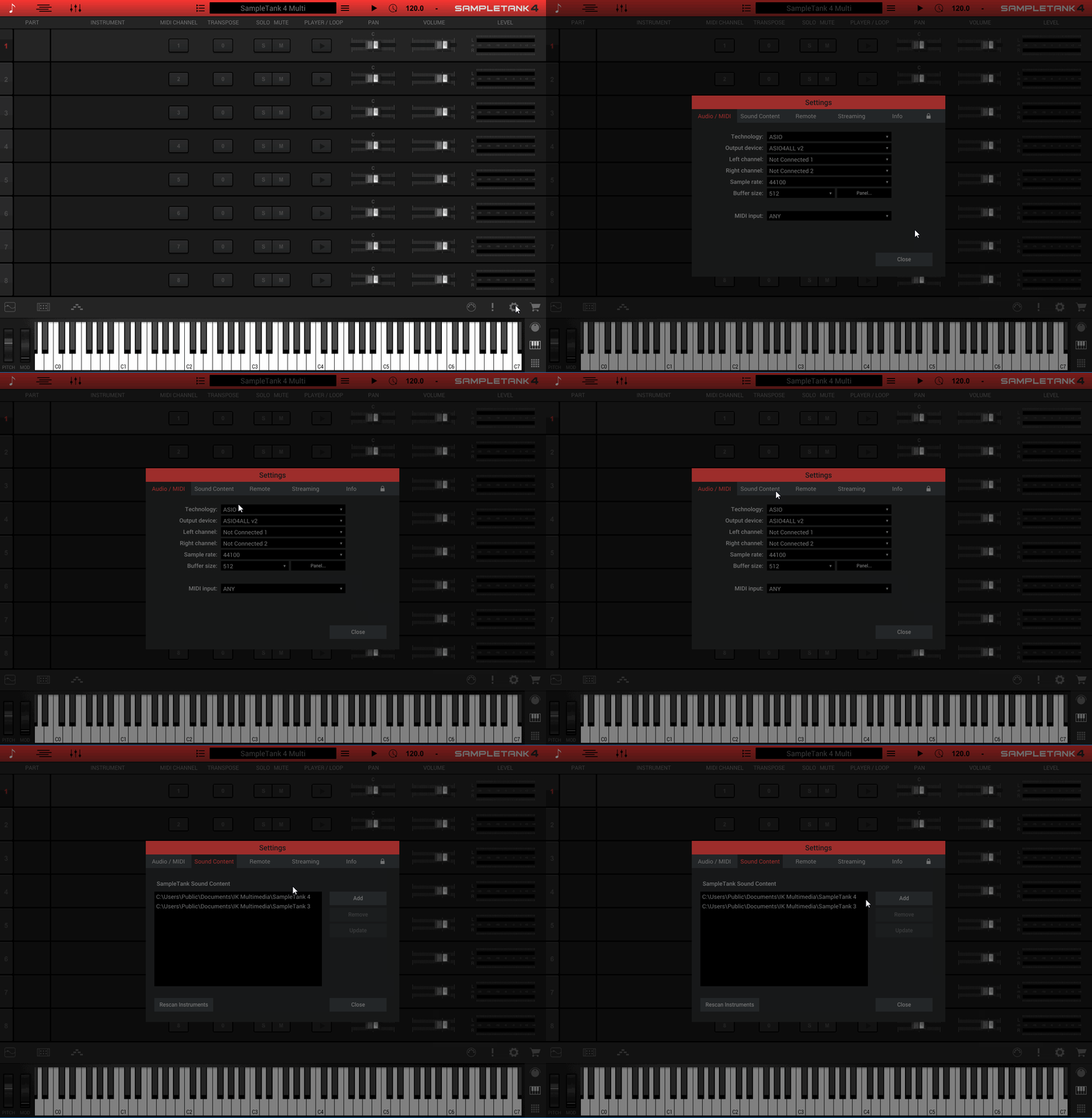
- Use the Browse button and select the location where you have installed your SampleTank 4 sounds, then use the Browse button again to select your SampleTank 3 (Miroslav Philharmonik 2 or Syntronik) sound library. Notice these are installed to separate locations (Miroslav Philharmonik 2 and Syntronik will be installed to your SampleTank 3 folder).
- This Browse button opens a window of your hard drive so you can navigate to where your sounds were installed to. Depending on which installer was used and the operating system used, SampleTank 4 will install it's content to the following default locations. In the above example, we have shown a custom installation path.
- Your sound library will then load up and appear within the Browser section of the software interface, ready to select!
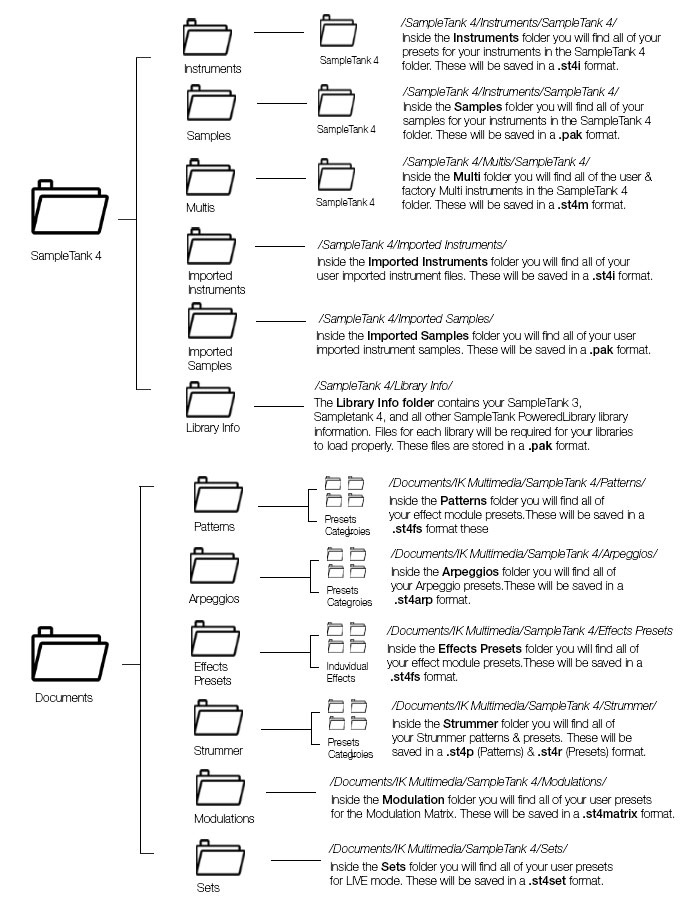
Default SampleTank 4 Sound Content Locations
Mac: Macintosh HD > Users > Shared > Documents > IK Multimedia > SampleTank 4C:\Users\Public\Documents\IK Multimedia\SampleTank 4
NOTE: Since the install path can be customized, navigate to your custom install path if you selected anything besides the default path.
The SampleTank 4 default location should look as it is shown in the below image. If the proper folder or file structure is not used, SampleTank may not see your sounds.
SampleTank 3 & Associated libraries (Miroslav Philharmonik 2, Syntronik, or any Custom Shop libraries)
Please make sure to have installed both your plugin installer as well as the Sound Library content, then proceed with the following steps.
- Load your virtual instrument as a plugin in your DAW/Host program or as a stand alone application
- Click the setting cog wheel and enter the Preferences section
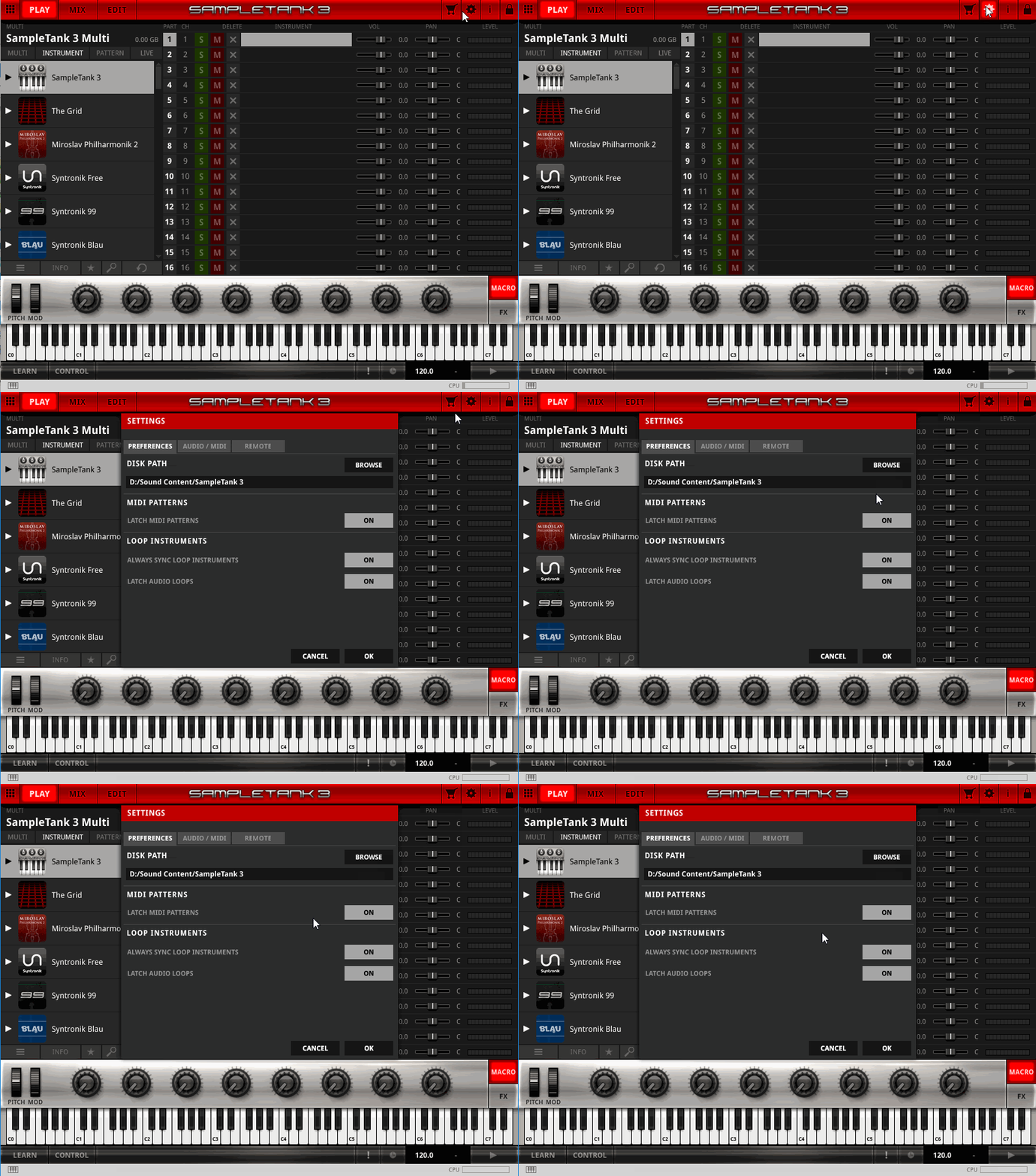
- Use the Browse button and select the location where you have installed your SampleTank 3 sounds. All additional libraries, like Miroslav Philharmonik 2, or Syntronik, will be installed to the SampleTank 3 folder. This will allow all content to be selected in a single location. Use this location for your Miroslav Philharmonik 2 and Syntronik programs as well.
- This Browse button opens a window of your hard drive so you can navigate to where your sounds were installed to. Depending on which installer was used and the operating system used, SampleTank 3 and your related libraries will install it's content to the following default locations. In the above example, we have shown a custom installation path.
- Your sound library will then load up and appear within the Browser section of the software interface, ready to select!
Default SampleTank 3 Sound Content Locations
Mac: Macintosh HD > Users > Shared > Documents > IK Multimedia > SampleTank 3
C:\Users\Public\Documents\IK Multimedia\SampleTank 3
NOTE: Since the install path can be customized, navigate to your custom install path if you selected anything besides the default path.
The SampleTank 3 default location should look as it is shown in the below image. If the proper folder or file structure is not used, SampleTank may not see your sounds. 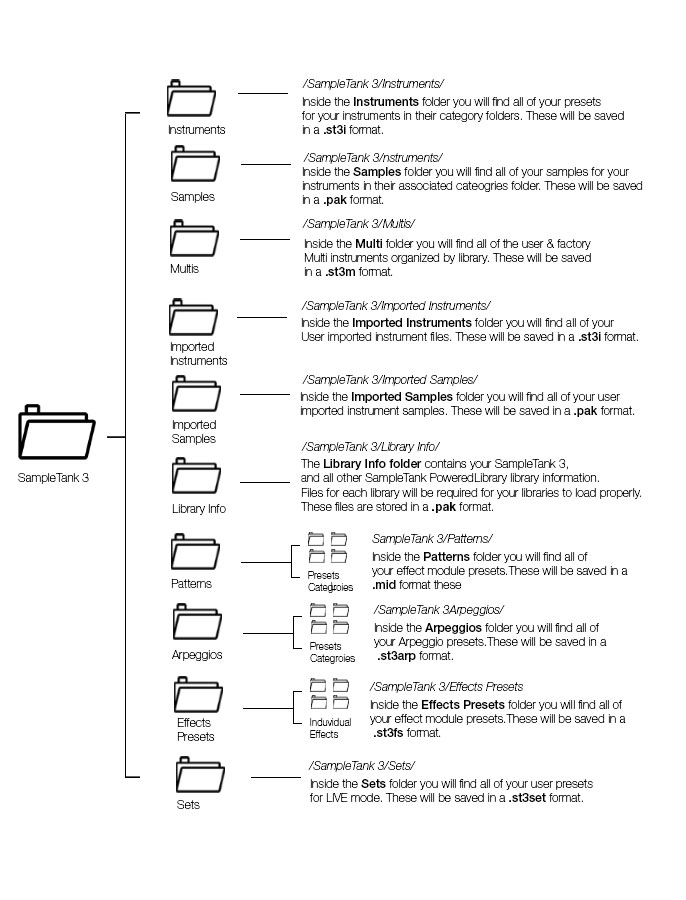
SampleTank 2 & Associated libraries (Miroslav Philharmonik 1, SampleMoog, SampleTron, or Sonik Synth 2)
Please make sure to have installed both the plugin installer as well as the Sound Library content, then proceed with the following steps..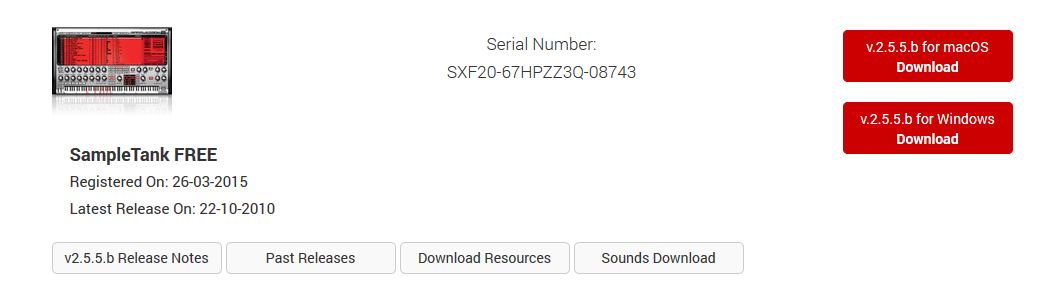
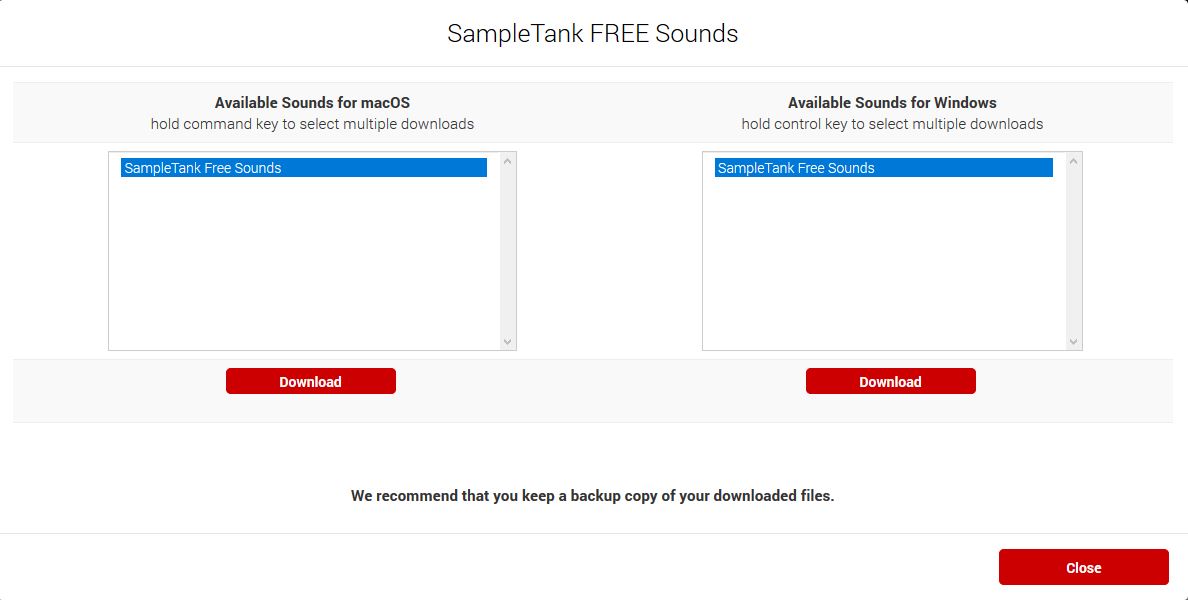
- Load your virtual instrument as a plugin in your DAW or as a stand alone application
- click the PREFS button on the upper right side
- this opens a small Preferences box, click BROWSE
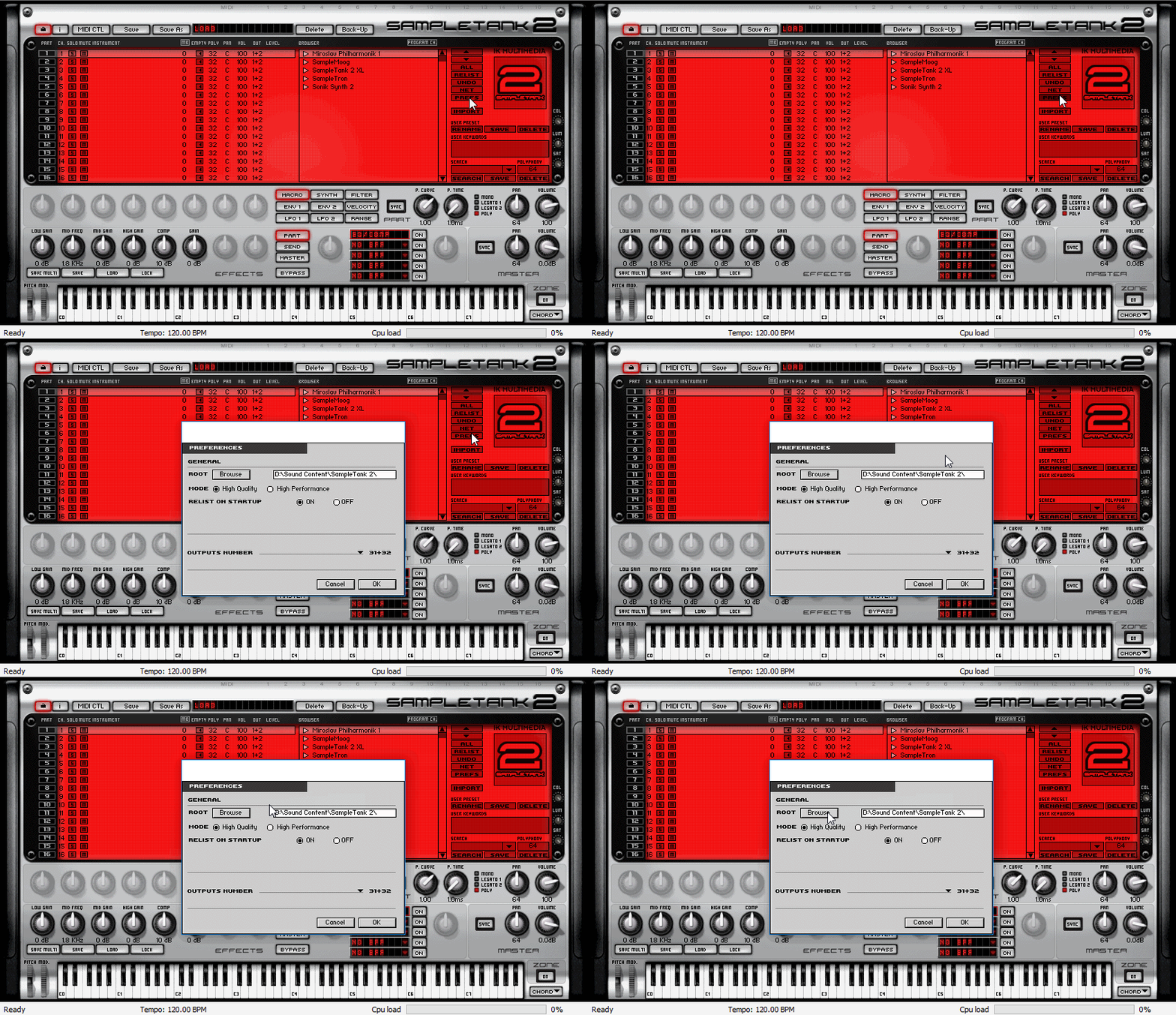
- this opens a window of your hard drive so you can navigate to where your sounds were installed to. There are 2 possible
locations where your sounds can be installed to, depending on which installer was used: - click once on the main 'Instruments' folder to select it and hit OK or OPEN
- hit OK in the Preferences box
- Your sound library will then load up and appear within the Browser section of the software interface, ready to select!
Default SampleTank 2 Sound Content Locations
Location 1 -
Mac: Macintosh HD > Library > Application Support > IK Multimedia > (product name) > Instruments
PC: C: > Program Files > IK Multimedia > (product name) > Instruments
Location 2 -
Mac: Macintosh HD > Library > Application Support > IK Multimedia > Instruments > (product name)
PC: C: > Program Files > IK Multimedia > Instruments > (product name)
NOTE: Since the install path can be customized, navigate to your custom install path if you selected anything besides the default path.
Click here for our FAQ on loading these sounds into SampleTank 3 and SampleTank 4.
If you need help after following this FAQ, contact our team here.
FAQ ID: 1239


